 Contact us

October 7,2021
Magento 2 Guide: Product Tiered Pricing

Tiered pricing on an eCommerce store offers an extra incentive to increase order value, while providing customers saving for purchasing multiple products. It’s a win-win.
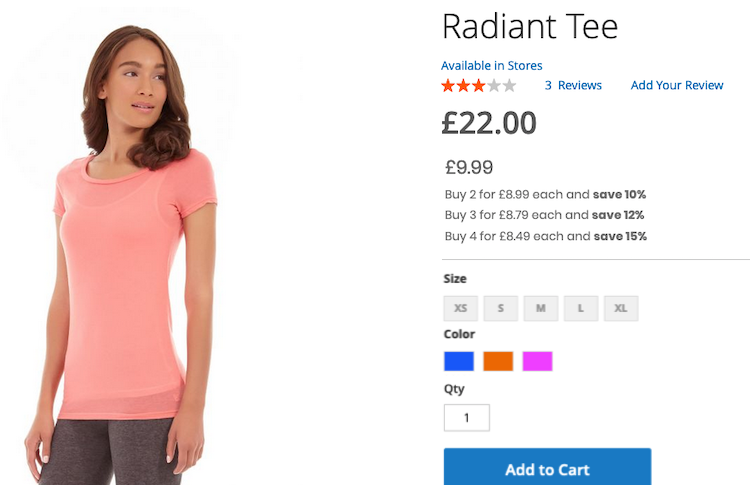
In Magento 2, there is a simple way to set this up on a per product basis.
Quick Overview
- Log into your Magento admin area.
- Go to Catalog > Products.
- Filter and find the product, then go to edit it.
- Under Price, there is an option for Advanced Pricing.
- In the table, add the number of tiers you want.
- Apply the price, quantity required, discount amount.
- When finished, hit done, then save the product.
Full Overview
Log into your Magento admin area, once logged in, head to Catalog > Products. In here, filter and find the product you want to add tiered pricing to and go to edit that product.
Once you’re in the edit view of your product, scroll down to Price, just under the Price of the product, there is an option for Advanced Pricing. Clicking this will pull up a new area to edit the advanced pricing.
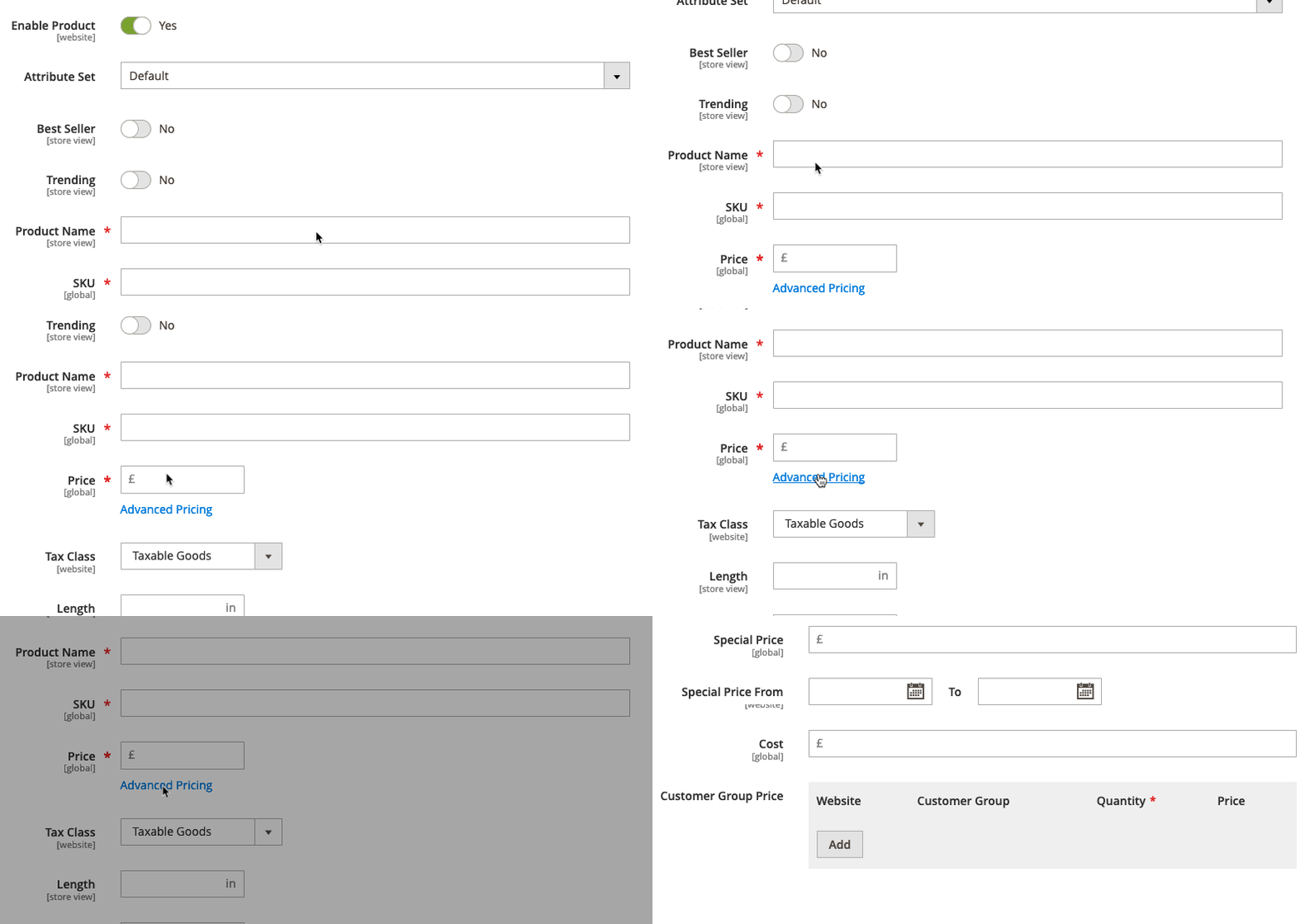
Here is where you can set the pricing tiers for your product. In the table area, click Add, this will create a new row to define a tier for pricing.
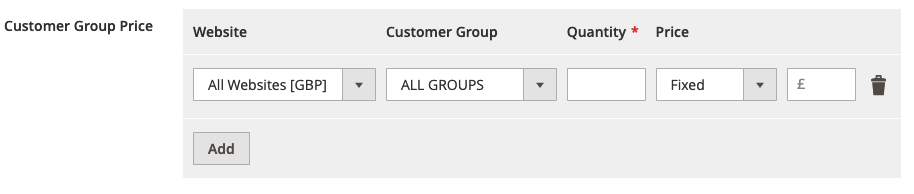
In here you can set:
- Which website it applies to.
- The customer group who can see it.
- The quantity the customer needs to order to qualify for the discount.
- A dropdown to choose either Fixed (a new set price) or Discount (a percentage based discount).
- The amount of the discount.
You do not need to set the price for one, this is defined by the default/base price. Once you’ve set up all the rows you want, hit Done, then save the product to finish. This will then show on the product page, if not, you may need to flush the website cache.
Need help with Magento?
We are experts in Magento, with experienced designers, developers & marketers. If you need a hand, get in touch.
Bulk updating tiered pricing
If you find you have a large number of variants you need to update, doing this product by product can be very time-consuming, there is, however, a way to bulk update the tiered pricing. This is done via importing a csv.
The fields the csv need to contain are:
- sku (product identifier)
- tier_price_website (the store you’re updating)
- tier_price_customer_group (the customer group the tiered pricing belongs to)
- tier_price_qty (quantity needed for the tier)
- tier_price (the new price for the tier)
- tier_price_value_type (either fixed or percentage-based discount)
You can get an example of this by going to System > Data Transfer > Export.
Under Entity type select advanced pricing, Export format as csv. From this you will end up with a list of attributes to filter the products you want to export, if you’re unsure which to pick, scroll down to SKU and enter the SKU(s) of products. Once done, click the continue button at the bottom and the download will start.
Now for bulk updating.
Quick overview
- System > Data transfer > Import
- Entity type: Advanced Pricing
- Import behaviour: Add/Update
- Select your update csv
- Hit the Check Data button at top
- Once the data has been checked, hit the import button
Full Overview
Once you’ve got your updated csv of tiered pricing, from the admin area, head to system > Data transfer > Import.
From the Entity type dropdown, you want to choose Advanced pricing. From the list that appears set Import behaviour to Add/Update, this will add the fields in your csv to the products.
The other fields can be left the same, the only thing left to do is select the file you want to import. Once you’ve added your file, click the Check Data button in the top right, the system will now check through the data, if there are any errors it will stop.
Once it’s finished verifying the data, an import button will appear at the bottom, click this and the data will import. Once finished, you may need to flush the cache on your website for the prices to show up on the front end.
A couple of side notes, regarding the tiered pricing: Advanced product pricing is not the same as offering a discount via catalog/cart price rules. This means it is is a separate entity to, so any catalog/cart price rules will run alongside your tiered pricing, for example:
If you have a 20% site wide discount, and a product with buy 3 get 10% off tiered pricing, the discount and the tiered pricing will stack and both will be applied to that product.
If you do not want products with advanced pricing to be affected by catalog/cart price rules, you will need to exclude the products from the catalog/cart price rule.
Check out all of our other Magento 2 Guides
We are a experienced Magento Agency, working with brands both large and small. If you need any help with your Magento Store, get in touch with us today!