 Contact us
June 23,2025
Editing Magento 2 Mega Menu with Venustheme

To edit your the Mega Menu, using the Venustheme extension in Magento 2
To get to the menu, you will need to go to the lef thand navigation and Venustheme > Manage menus.
Select menu you want to edit. If you have a separate mobile and desktop menu, they will both need to be updated.
When you go to edit a menu, you be taken to the General Settings of the menu. At the top, there will be two tabs, to edit the contents of the menu, you will want to go to Menu Editor.
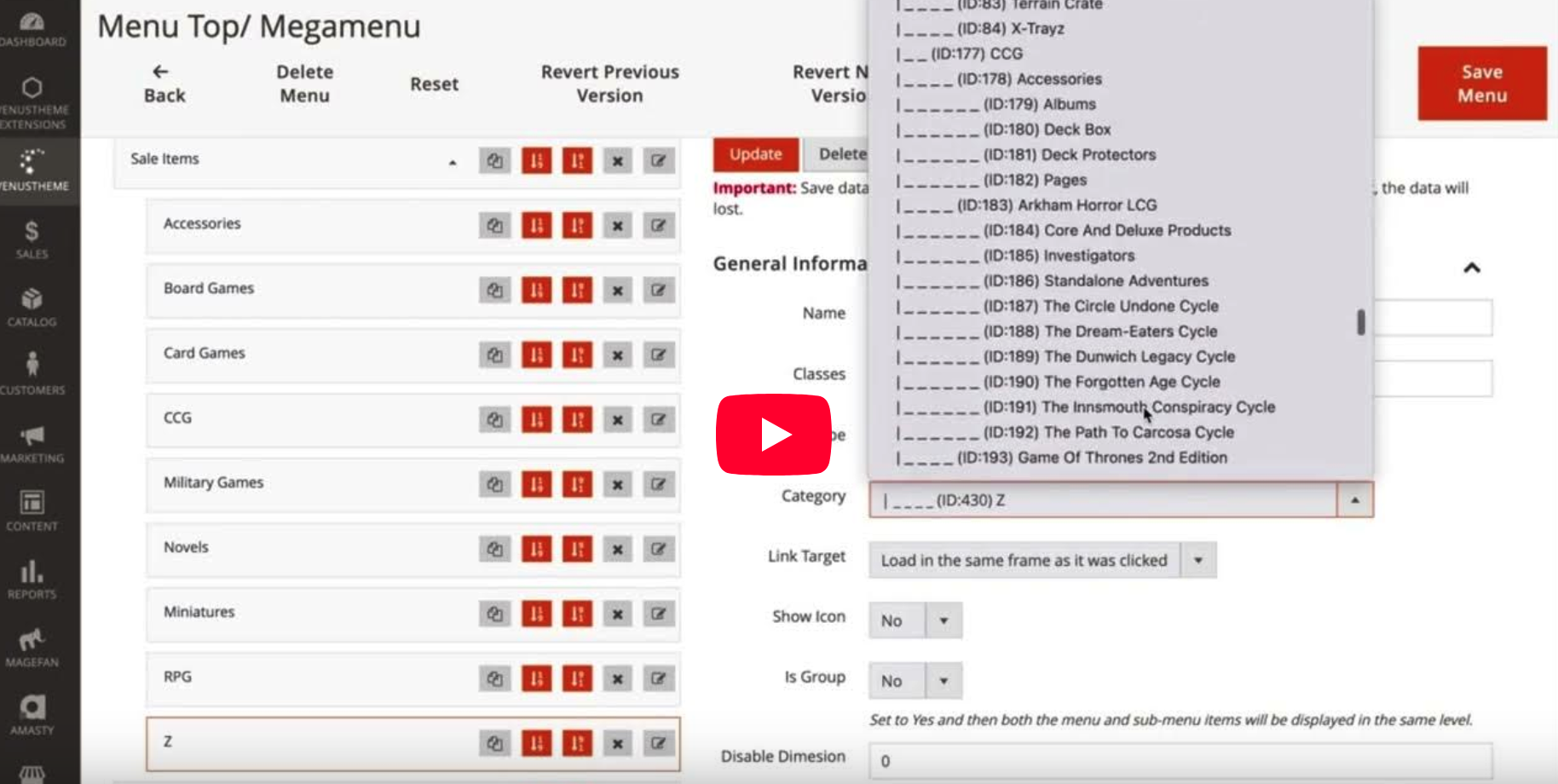
Here you will be able to edit the menus. The page layout has the menu items on the left, and the specific menu item details on the right.
Show a range of menu items, the items can be re-aranged by dragging and dropping them.
If it has a little downward arrow on, clicking this will expand it to show the subcategories.
Adding and editing menu items
Above the menu items on the left, there is an Add menu item button. This will give you a fresh menu tiem to edit on the right of the page.
To edit an existing item already in the menu, you can use the Expand all button to show all the menu items nested under others. Alternatively, you can use the black arrow on a menu item, to show the ones under that specific menu item.
Once you have found the one you wish to edit, you will need to cick on the edit menu item (far right icon). This will show the contents of the menu ite on the right-hand side.
There are a number of different options in there that will control the menu, however, we’ll look at how to edit the main details of each item.
-
- Name – The title of the menu item, this is how it will appear on the front end.
- Link type – How the link will be given.
- Category link – Lets you choose the link from the categories created in the system
- Custom link – Lets you choose one of the CMS pages or add the link manually.
- Status – Allows you to enable and disble the menu item.
Once you have finished making your changes, you will have to click the Update button. This will keep the changes you have made, for when you need to save. You will need to do this for each menu item that you make changes for.
If you do NOT Update the menu item before changing to another or saving, your changes will be lost.
After you have finished making changes to the menu, use one of the Save options at the top of the page.
Re-arrange menu items
To re-arrange menu items, you can either drag and drop them to where you want them to go, or use the buttons on the menu item to move them up or down. Make sure they are inline with the main or sub menu items, otherwise, this could cause display issues with your menu.